Videos
Select Video in the Source dropdown. You get an .mp4 with embedded subtitles in output/final/, from an online video or a video already on your computer.
Input source
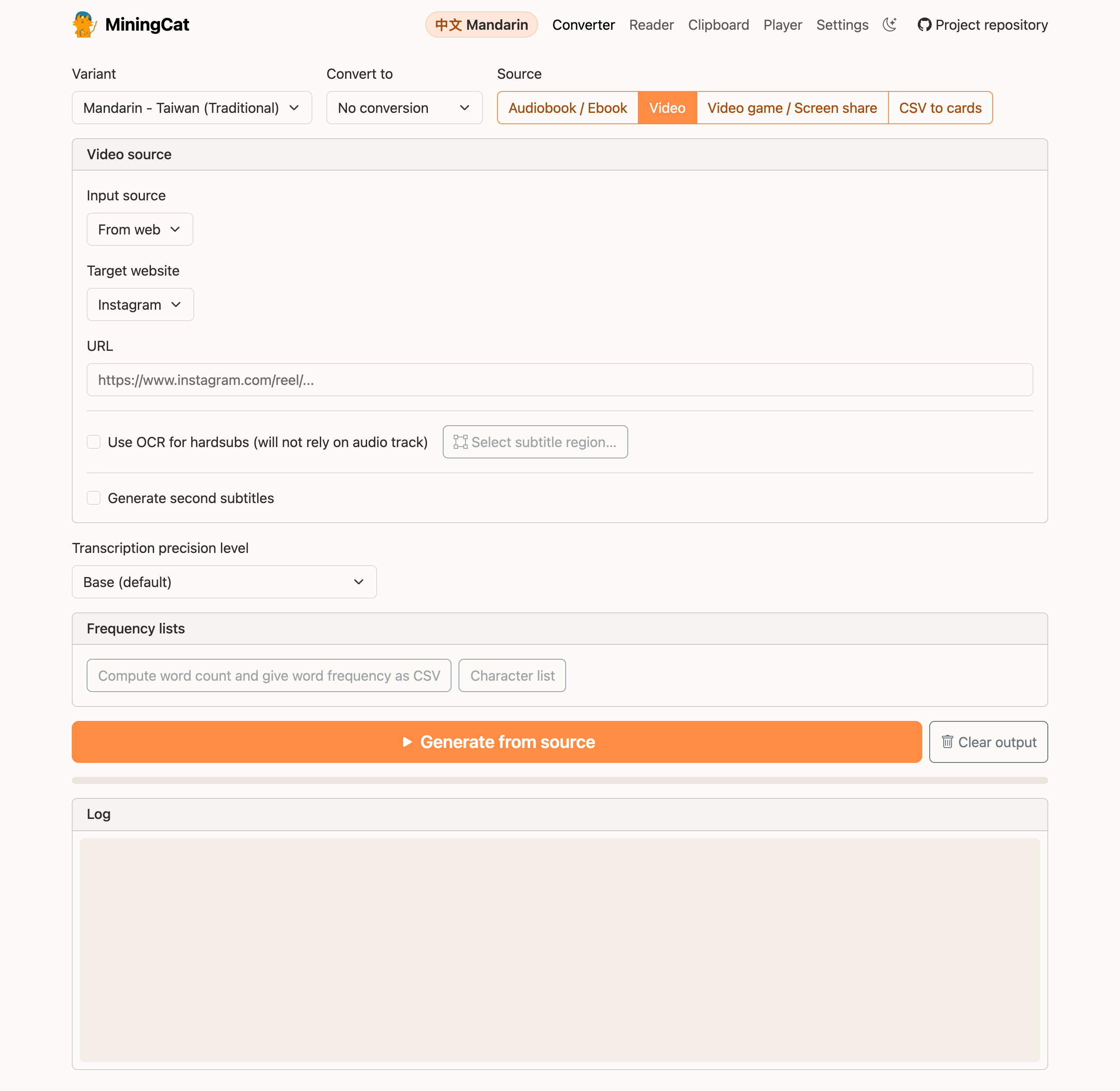
From the web
Pick From web and paste the video URL. The platform is detected from the URL (the Target website dropdown is informational).
| Platform | Supported content | Existing subtitles reused |
|---|---|---|
| YouTube | Regular videos and Shorts | Yes, manual or auto-generated captions in the selected language |
| Reels | No | |
| Bilibili | Regular videos | No |
More platforms to come (or add one yourself!). Downloaded videos are kept in output/videos/, so processing the same URL again doesn't download it twice.
Local file
Pick Local file and select a video file, just like you'd provide an ebook.
If the file has several audio tracks (e.g. several dubs), an Audio track dropdown appears: pick the one matching the selected language.
How it works
- Provide the video and click Generate From Source.
- The audio is transcribed with Whisper, or Qwen3-ASR when it's installed and selected in Precision (using the selected Language, Precision and audio track), into a
_whisper.srtsubtitle file (_qwen.srtwith Qwen3-ASR). - If the video already has subtitles, they're kept as a
_source.srtfile:- YouTube: captions in the target language are downloaded alongside the video.
- Local file: a sidecar
.srtwith the same name next to the video (e.g.movie.mp4+movie.en.srt) is reused, or else a text subtitle track already inside the video is extracted. Image-based subtitles (PGS, VobSub) can't be extracted this way, use OCR instead. - Instagram and Bilibili don't provide usable subtitles, so their videos only get the Whisper track.
- The final video contains one subtitle track per source, labelled Source, Whisper (or OCR) in players like VLC.
When it's done, Watch in the player opens the video in MiningCat's video player: click a word in the subtitles to look it up, and make Anki cards with a screenshot and the line's audio.
Subtitle files are saved in output/srt/, so Convert to and the frequency lists work just like for audiobooks (computed from the Whisper transcript).
Burned-in subtitles (OCR)
Many videos have subtitles drawn directly on the image ("hardsubs"). They're often better than a Whisper transcription, and MiningCat can read them with OCR instead of transcribing the audio.
- Check Use OCR for hardsubs (will not rely on audio track).
- Click Select subtitle region… and draw a box around the area where the subtitles appear. If you skip this step, the bottom third of the video is used.
- Adjust OCR frames per second (2 to 12, default 4). Higher values catch short subtitles better but take longer.
- Click Generate From Source.
MiningCat extracts frames from the region, reads their text, merges identical consecutive frames and builds an _ocr.srt subtitle track. Whisper isn't used in this mode, so the precision setting is hidden.
OCR engine
On macOS, OCR uses Apple Vision (built into the system). On other platforms, it uses EasyOCR, which is slower and downloads its models on first use.
Second subtitles (translation)
Learners often want the subtitles in their own language too. Check Generate second subtitles: a subtitle track is translated, offline, to the language chosen in Settings › Translation: "Second subtitles will be generated in … with …" names the language and the model (NLLB-200 or Qwen3 4B, chosen in the same place).
- From track: the subtitles translated: one of the subtitle tracks of the local file, or Use generated main subtitles (the Whisper or OCR ones, always offered, and the only choice for a URL).
- The translation keeps the numbers, timestamps, line breaks and formatting of the original, line by line. It's saved as
_translated_<language>.srtand added to the video as a track labelled e.g. English (translated), with its own language. - The translation model must be downloaded first (see Translation). If the translation fails, the video still gets its other subtitles.
From the terminal
make video URL="https://www.youtube.com/watch?v=xxxxx"
make video FILE="path/to/movie.mp4" LANGUAGE=japanese MODEL=small
See the CLI reference for all options (OCR, audio track, conversion...).
Troubleshooting
- Instagram downloads start failing: try another app id with
--app-id ios(or a numeric id) in the CLI. - YouTube captions are missing: YouTube sometimes rate-limits caption downloads. MiningCat then continues without them and you still get the Whisper track. Try again later if you need the source captions.
- Wrong language in the transcript: check the Language setting and, for local files with several dubs, the Audio track.
- "No subtitles read" (OCR): nothing in the selected region was read as text in the selected language. Draw the subtitle region again (a bit larger), and check the Language. With no subtitles at all to add, the run stops with an error instead of making a video without subtitles.