Video player
MiningCat has a video player made for mining: the subtitles are shown over the video and in a list beside it, a click on a word looks it up in your dictionaries, and + Card makes an Anki card with a screenshot and the line's audio. The subtitles are plain text in the page, so Yomitan works on them too if you prefer it.
The player opens at http://127.0.0.1:5050/player/. It's also reachable from the Player link at the top of the converter, the reader and the settings.
Adding videos
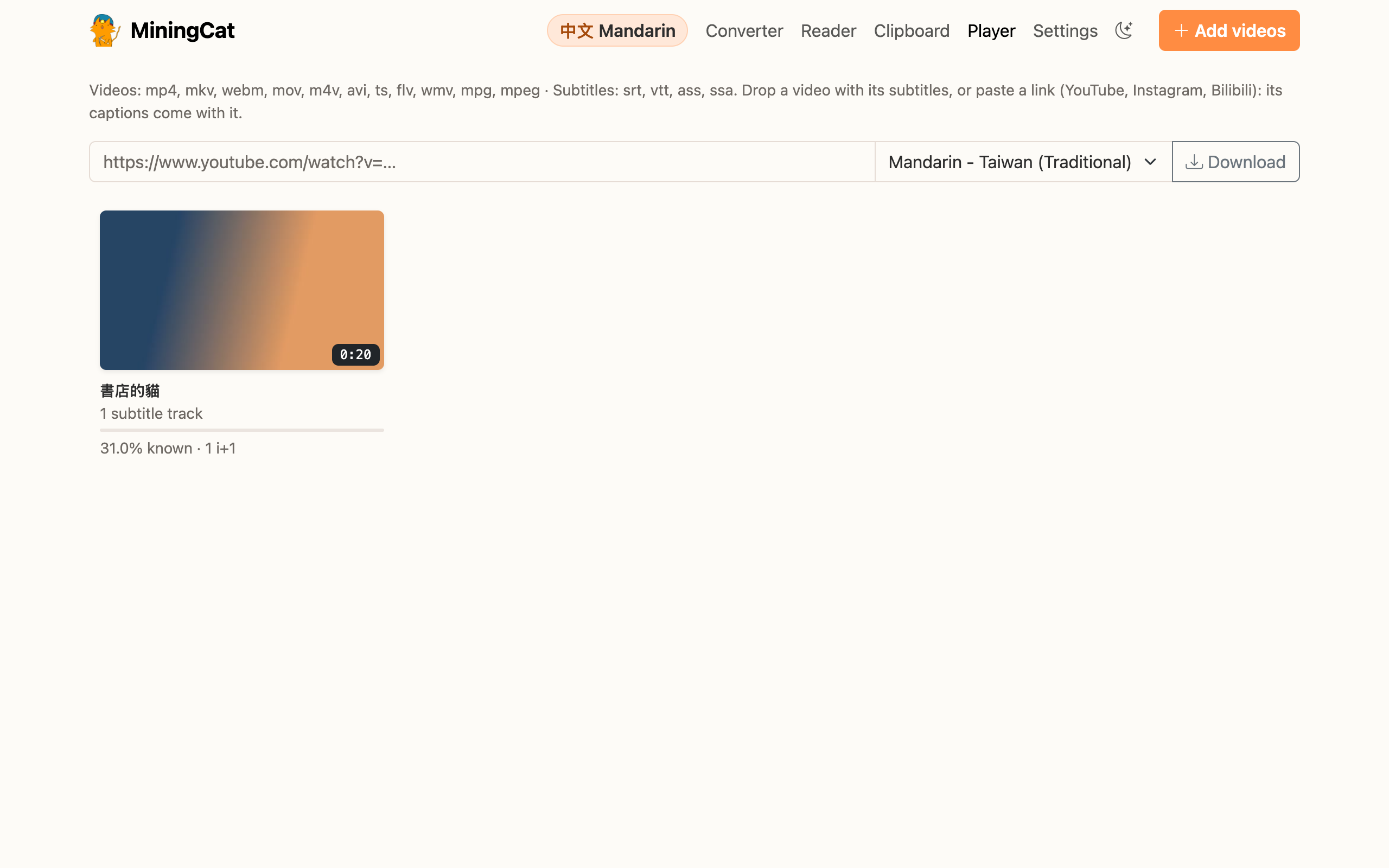
| How | What you get |
|---|---|
| + Add videos, or drop files on the page | A video from your computer. Drop its subtitles (.srt, .vtt, .ass) with it: movie.mkv takes movie.srt, movie.ja.srt… (with a single video, it takes every subtitle file dropped with it). |
| Paste a link and click Download | A video from YouTube, Instagram (Reels) or Bilibili, downloaded like in the converter. YouTube captions in the language you study come with it (for Mandarin and English, pick the variant first). |
| After a video conversion | Click Watch in the player in the Done dialog: the converted video opens with the subtitles MiningCat made (Whisper or OCR) and the ones it came with. |
Subtitle tracks inside the video file (MKV, MP4) are added by themselves. Image-based subtitles (PGS, VobSub) can't be read: make text ones with the converter's OCR.
Videos are kept in the library/ folder of the project, with your position in each one. A video copied from output/ doesn't take extra space (it's a hard link), and removing a video from the player never touches your original file.
Videos the browser can't play
Browsers only play some formats, and not all the same ones. MiningCat converts as little as it can, with ffmpeg:
- When the video is added, what no browser plays is fixed: AVI, TS or WMV files are repackaged as MP4, and AC3, DTS or TrueHD audio is converted. The video itself is kept as it is, so this takes seconds.
- When you open the video, if your browser still refuses it (e.g. Safari with an MKV), the player repackages it as MP4, without re-encoding: a second or two.
- Only when your browser can't decode the video at all (e.g. HEVC in a browser without HEVC support) is it encoded again. That takes a while, about 2 minutes for a 25-minute episode on an Apple M2; the remaining time is shown. Videos larger than 1080p are brought down to 1080p.
Chrome plays the most formats (HEVC included on a Mac), so it rarely needs step 3.
Watching and mining
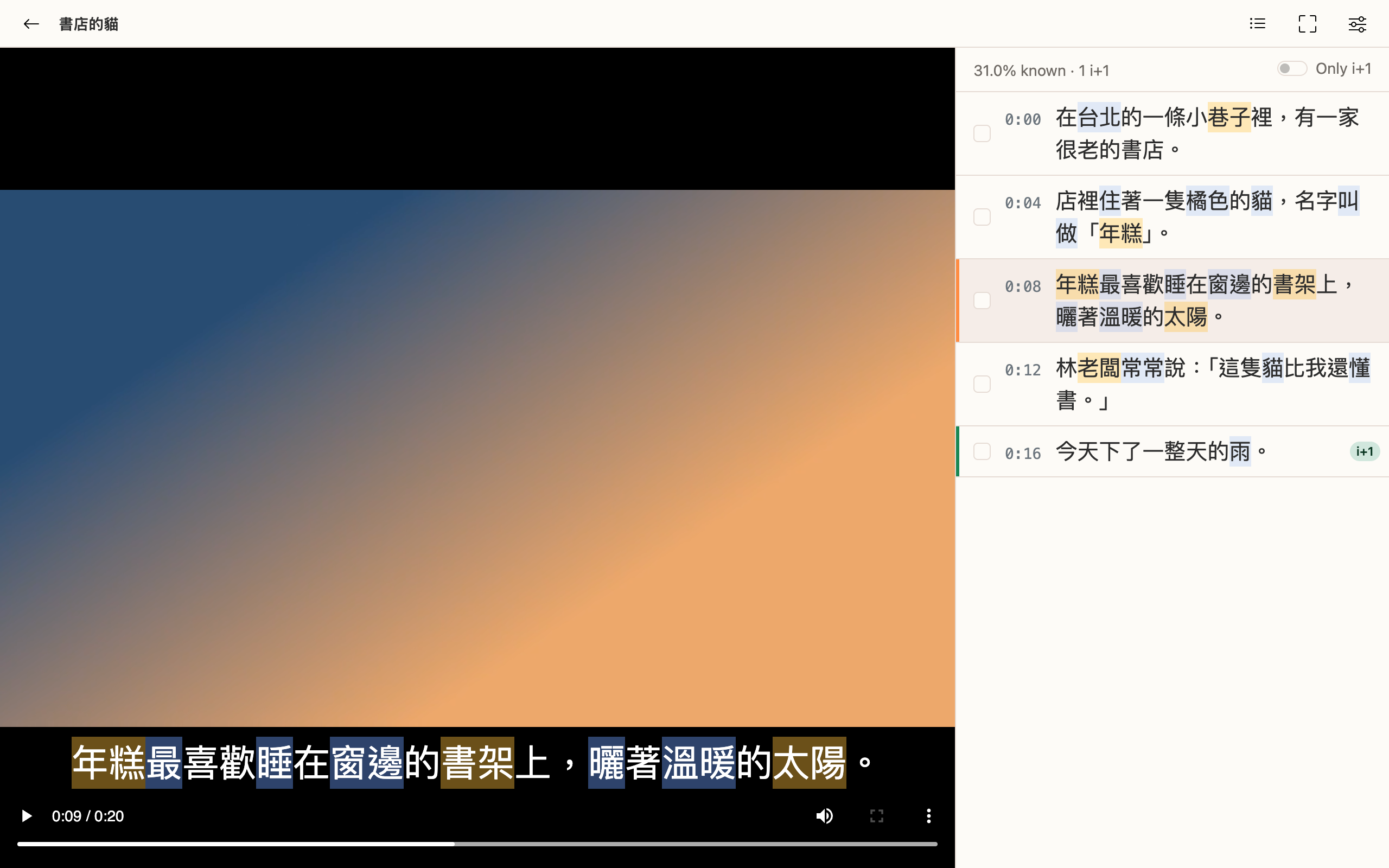
Click a word in the subtitles, over the video or in the list: the video pauses and the dictionary popup opens, with the same keys as in the reader. ▶ Sentence (or P in the popup) plays the line again in the video.
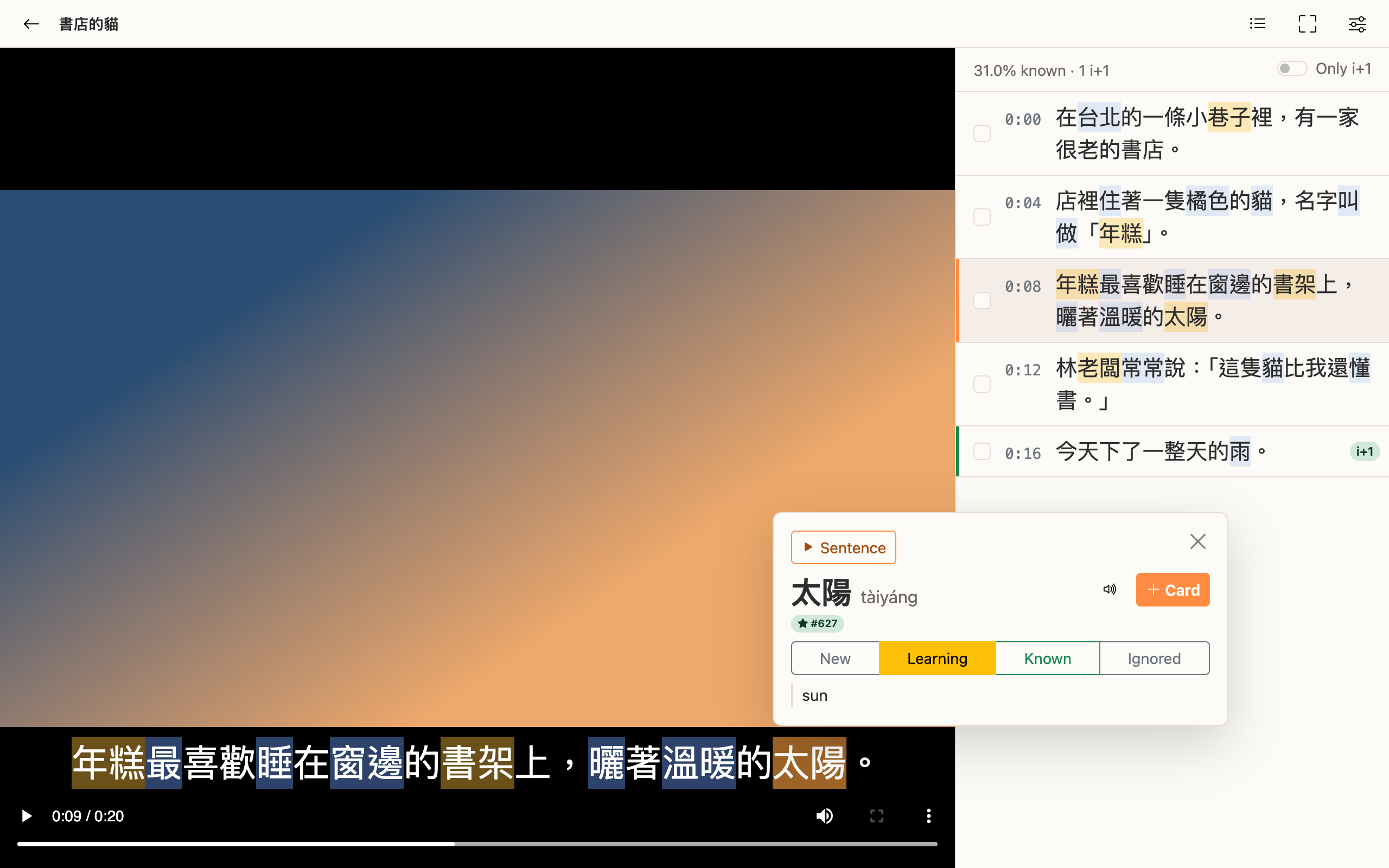
+ Card opens the card creator with:
- the whole subtitle line as the sentence, the word in bold;
- a screenshot of the video at that line, without the subtitles drawn on it: the picture on screen when the line is the one shown, else the middle of the line you clicked (also with several lines selected);
- the line's audio, cut from the video (the audio track you're listening to), from the start to the end of the line, with a margin of 200 ms before and after (set in Aa › Cards). When the subtitles' timing isn't right, adjust it on the waveform under Sentence audio: drag either edge (the edge you moved is played), drag across the waveform for a new span, or click it to listen from there. A focused edge moves by 50 ms with ← → (250 ms with Shift), and Space plays the span. The dotted lines are the subtitles' own timing, More context shows 2.5 s more on each side, and Reset goes back to the subtitles with their margins. The card gets exactly the span you chose;
- the video's title and the line's time as the source, e.g.
My video (0:12:34).
Subtitle lines are often only part of a sentence. Before looking the word up, select the sentence's lines in the list with the ○ in front of them (the lines in between come along; click the first or last one again to remove it). Then click a word in one of them, in the list or over the video: the card gets all the lines as its sentence, and one piece of audio from the first line to the last. The selection is shown above the list (and around the subtitle over the video); it's cleared once the card is made, or with Clear / Esc.
Click a line's time in the list to jump to it. The list follows the video; scroll it freely, it catches up a few seconds later.
Keyboard
| Key | Action |
|---|---|
Space |
Play / pause |
← → |
Previous / next subtitle |
↓ |
Play the current subtitle again, and stop at its end |
Shift + ← → |
5 seconds back / forward |
[ ] |
Subtitles 0.1 s earlier / later |
- + |
Slower / faster |
S |
Subtitles shown, blurred (hover to read) or hidden |
P |
Pause at the end of each subtitle |
L |
Show / hide the subtitle list |
N |
Go to the next recommended line (i+1, see comprehension and recommended sentences) |
F |
Fullscreen, with the subtitles |
Esc |
Clear the lines selected for the card |
Settings
Click Aa. For this video:
- Characters of the subtitles (Mandarin only): Traditional or Simplified, detected from the subtitles, or set by the converter or the download. It picks the fonts.
The library only shows the videos of the language you study: the videos you add are filed under it.
- Subtitles and Second subtitles: the second track (a translation, for example) is shown smaller, under the first one, and isn't looked up. With Use secondary subtitles as translation (on by default), a card's sentence translation is the second track's lines at the same time; off, or without a second track, the sentence is translated offline.
- Generate second subtitles: translates a track (From track:) to the language chosen in Settings › Translation, with the model chosen there (shown under the button), offline, with the same timings and formatting. The new track (e.g. English (translated)) becomes the second subtitles. It runs in the background: you can keep watching.
- Subtitle timing: when the subtitles are early or late ([ ]).
- Audio track, for videos with several (e.g. dubs). A browser can only play the first audio track of a file, so MiningCat makes a copy with the chosen one.
- Add subtitles… (or drop a subtitle file on the page) and Remove these subtitles.
For every video: subtitle size, shown / blurred / hidden, auto-pause, word colours, and the audio margin kept before and after the lines on cards (200 ms by default).
Chinese / Japanese punctuation (on by default): in the subtitles studied, ASCII punctuation after Chinese or Japanese characters is shown as the language's own (, → ,, . → 。, "…" → 「…」, or “…” in simplified characters, 、 in Japanese). Numbers, English words and romanized Taigi keep theirs. The subtitle file itself isn't changed.
Current limits
- No subtitles yet? Generate them in the converter (Video, with Whisper or OCR), then Watch in the player.
- Only the first audio track of a file can be played by a browser: another track needs a copy of the video (made by MiningCat when you choose it).
- Streaming sites can't be played in the player directly: their videos are downloaded first.