Getting started
Warning
Currently, there's not executable files for this project. Installation requires to use the terminal.
Requirements
- Python 3.14 (the version used in CI; tested with 3.14.5)
- ffmpeg, used to split, convert and render audio and video
- macOS:
brew install ffmpeg - Debian/Ubuntu:
sudo apt install ffmpeg - Windows: see Installation on Windows
- macOS:
- A web browser: the GUI is a local web page (nothing is sent online)
- make, to use the shortcuts below (you can also call
python -m miningcatdirectly, see CLI reference)
Everything else (Whisper, yt-dlp, edge-tts, OpenCC, owocr...) is installed by make install.
The local voice reading the sentences and the books, OmniVoice, is large: install
it from Settings › Voice (Install OmniVoice), or with make install-omnivoice (about 4 GB with its model, in its own
environment .venv-omnivoice). The first use can be long: the model is put in the cache, and each language's voice is made up once.
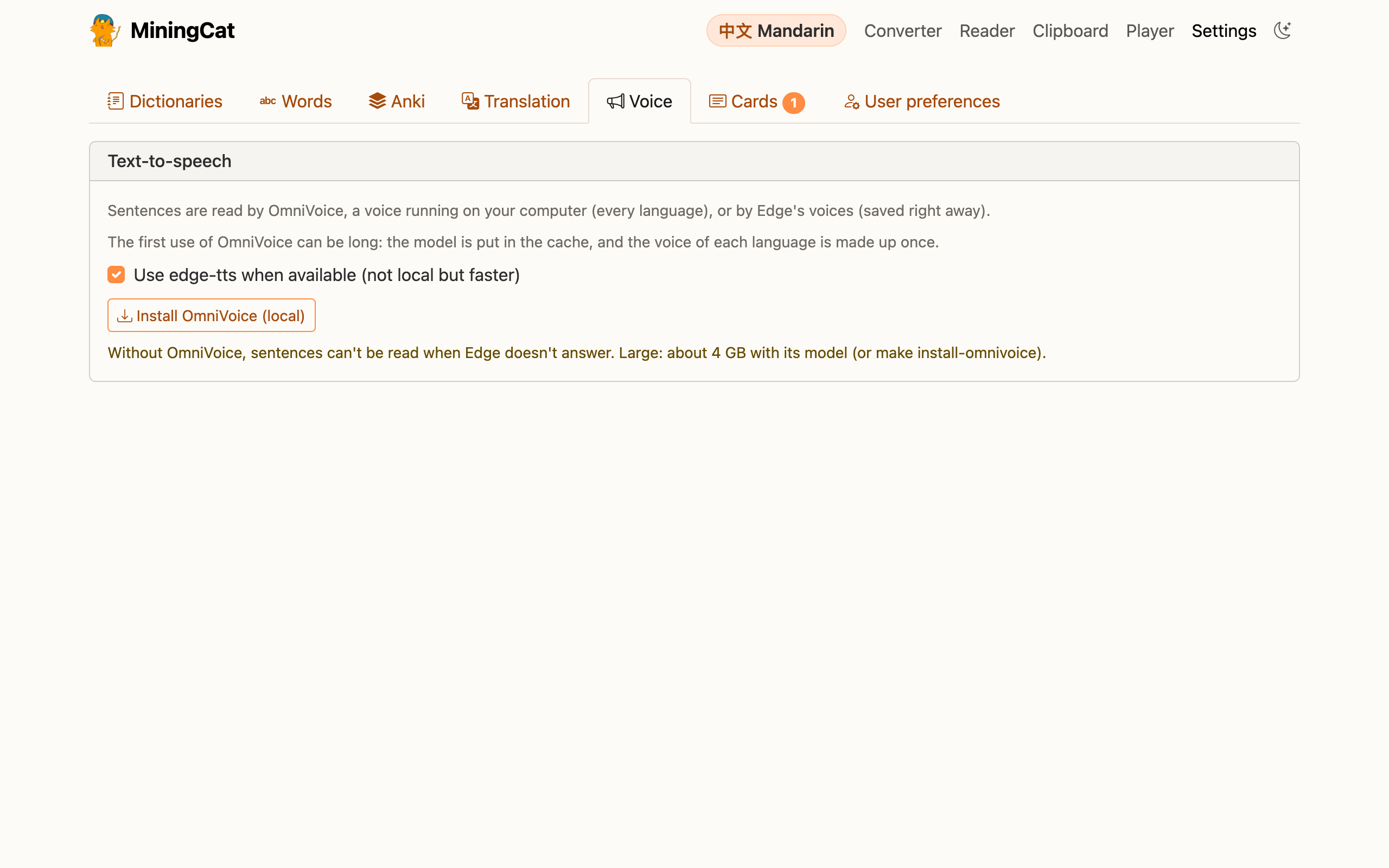 Settings › Voice also sets its quality. edge-tts is used by default (faster, but online): once OmniVoice is installed,
OmniVoice takes over when Edge fails (a message tells you), and reads everything if you untick "Use edge-tts when available".
Settings › Voice also sets its quality. edge-tts is used by default (faster, but online): once OmniVoice is installed,
OmniVoice takes over when Edge fails (a message tells you), and reads everything if you untick "Use edge-tts when available".
ElevenLabs (optional, paid)
ElevenLabs can read with a voice of your choice (e.g. one with the accent you're learning), using your own account's credits. In Settings › Voice › ElevenLabs:
- Paste an API key (ElevenLabs › Developers › API keys) with the permissions Text to Speech, Models: read and
User: read (Voices: read as well, to show the voice's name). A free account can't use the voices of the voice
library through the API: a paid plan is needed for them. The key is kept encrypted in the database, with the key
file
user/secret.key: moving MiningCat to another computer, take it along withlibrary/, or paste the API key again. - Pick the model (the list comes from your account). Latest (the default) is ElevenLabs' latest model that reads the language, the newer one as soon as ElevenLabs releases it.
- Paste the ID of the voice reading the language you study: find a voice in the voice library, then Copy voice ID.
Its voice is then offered in every voice list (the card creator, CSV to cards, the converter's Generate audio), after
the others: it only reads what you pick it for. Tick Use ElevenLabs as the main voice to have it read every sentence
without audio of the cards you make (and every word without a recording) and be the converter's first voice: each
character read uses credits, and the audio isn't generated once they run out. The text in square brackets (the
readings of 字[zi4]) is never sent: the recent models would read it as audio tags.
Installation
git clone https://github.com/linlin56/mining-cat.git
cd mining-cat

# Create and activate a virtual environment
python3 -m venv .venv
source .venv/bin/activate      # Windows: .venv\Scripts\activate

# Install the dependencies
make install
Tip
The Makefile automatically uses .venv/bin/python3 when it exists, so make commands work even if you forget to activate the environment.
macOS 26.0 to 26.2
If you're on macOS 26.0, 26.1 or 26.2 and Python installed with Homebrew doesn't work (Symbol not found: _XML_SetAllocTrackerActivationThreshold),
it's a Homebrew issue. Install Python another way, then recreate the environment:
- the installer from python.org, then
rm -rf .venv && python3.14 -m venv .venv -
or uv:
Then make install as usual.
Installation on Windows
Windows doesn't come with make, Python 3.14 or ffmpeg. The simplest way to get them is Chocolatey, a package manager for Windows.
- Open PowerShell as administrator (right-click on PowerShell › Run as administrator), and install Chocolatey by following its guide.
-
In the same window, install the tools:
-
Close PowerShell and open a new one, not as administrator this time (the new window sees the newly installed tools). Then:
The Makefile uses .venv\Scripts\python.exe when it exists: no need to activate the environment.
Without make
Every make command is a shortcut for a Python command (see CLI reference). In PowerShell, from the mining-cat folder:
py -3.14 -m venv .venv
.venv\Scripts\python.exe -m pip install -r requirements.txt
.venv\Scripts\python.exe -m pip install --no-deps "owocr>=1.26.8"

$env:PYTHONPATH = "src"
.venv\Scripts\python.exe -m miningcat.interfaces.web --port 5050
Don't forget the owocr line: it isn't in requirements.txt (it's installed apart, without its dependencies), and the video game OCR needs it. $env:PYTHONPATH only lasts as long as the PowerShell window: set it again in a new one.
Launch the GUI
MiningCat starts a small local server and opens the GUI in your browser at http://127.0.0.1:5050/. Keep the terminal open while you use it, and press Ctrl+C there to stop it. Use make gui PORT=8080 if the port is already taken.
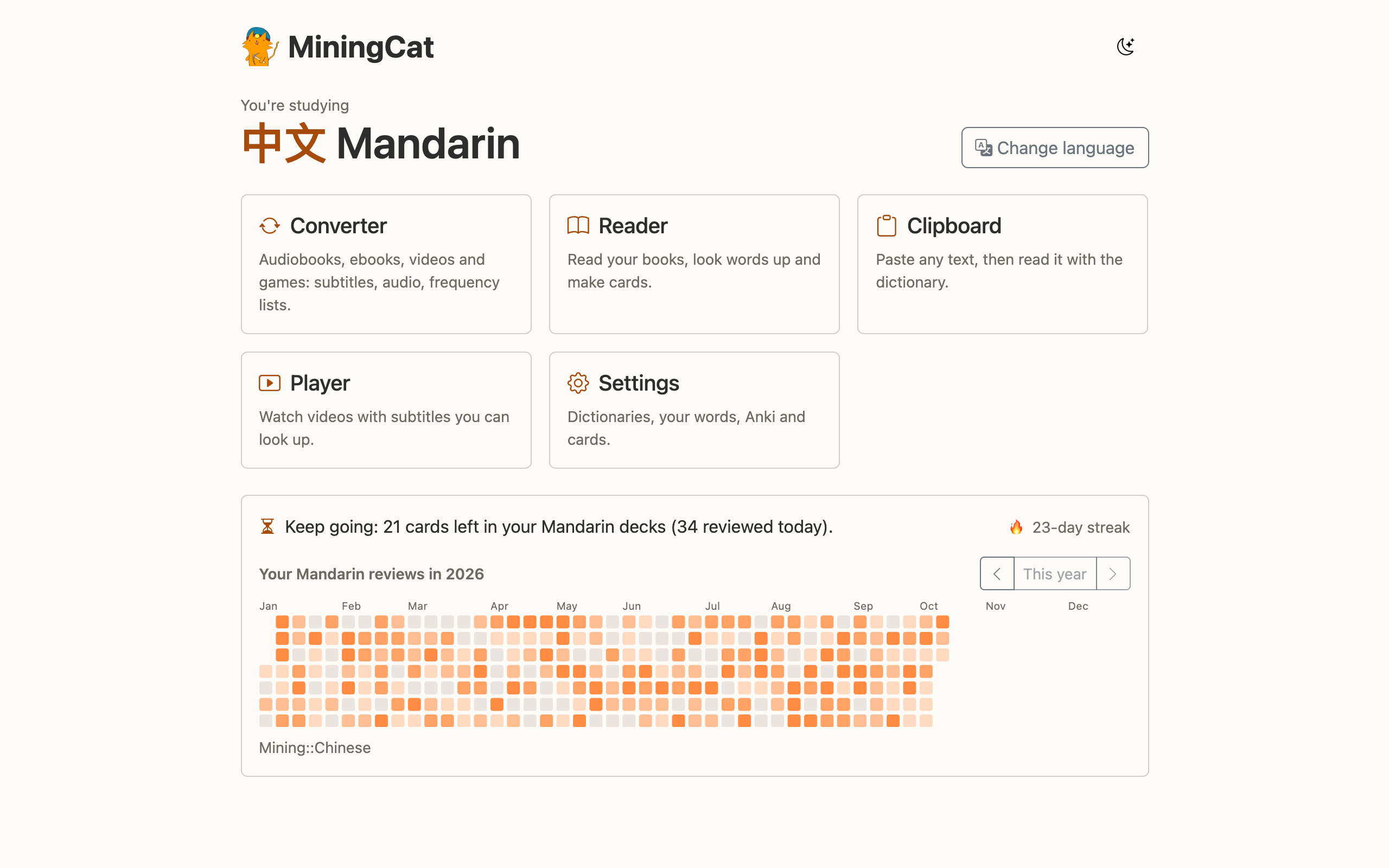
Choose the language you study
The home page first asks which language you study. Every screen then only shows what belongs to it: the converter's variants, the books of the reader, the videos of the player, and in the settings the dictionaries, words, Anki decks and cards of that language. Change it at any time with the language badge in the header of every page, which brings you back to the home page.
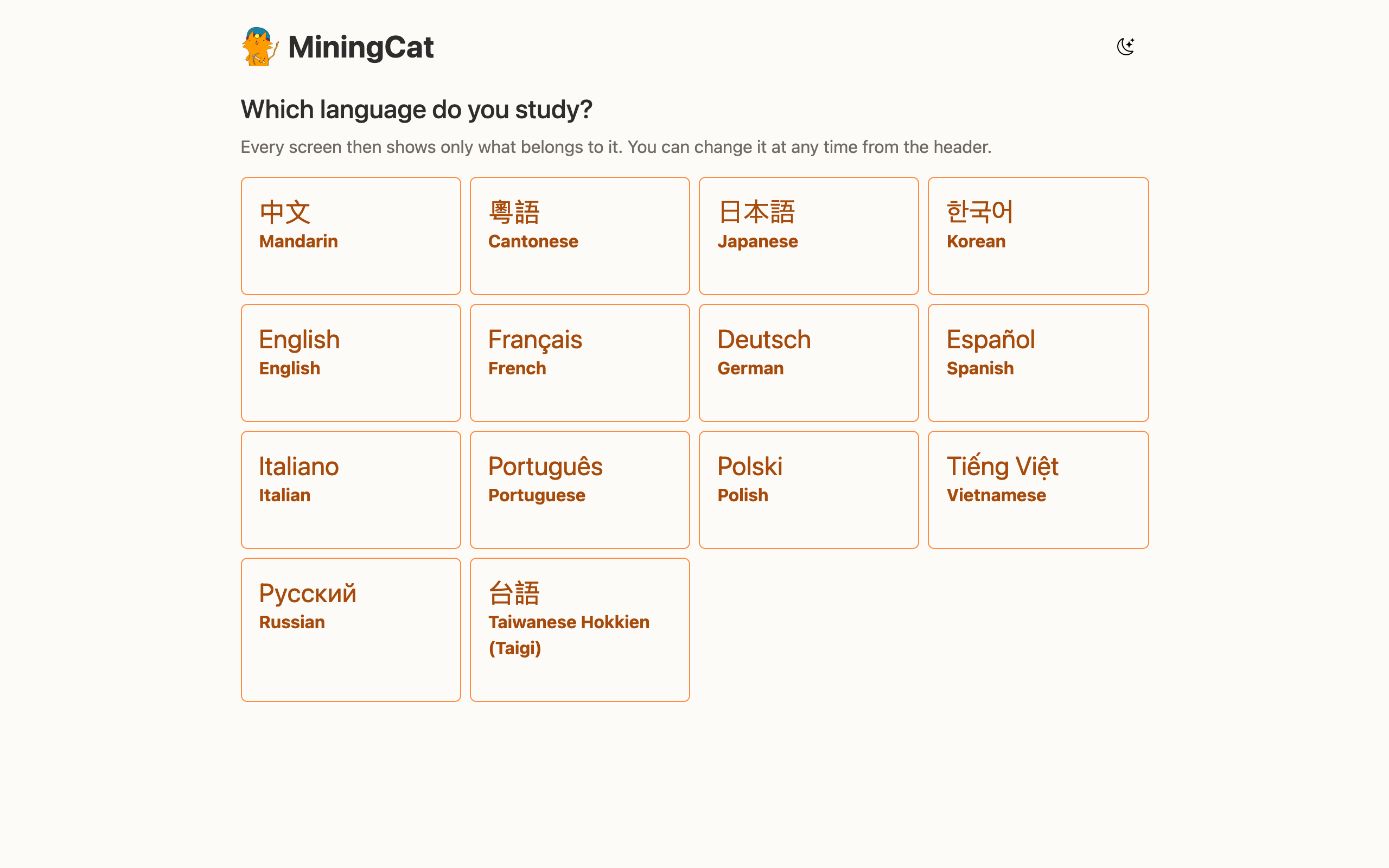
From the home page, open the Converter, the Reader, the Player or the Settings. When Anki is open (with AnkiConnect), the home page also shows, under the screens, where your reviews stand today (not started, cards left, or done), your streak of days in a row with reviews, and a heatmap of your reviews in the current year (its buttons go to the years before, when they have reviews). Only the decks linked to the language you study count (with their subdecks): the deck its cards go to and the decks synced with its words, in Settings › Anki. Your other decks (maths...) don't.
The Settings have a tab per topic: Dictionaries (import a dictionary or a frequency list), Words, Anki, Translation, Cards (the cards waiting for Anki) and User preferences: the theme (light, dark, or your system's), the highlight colours (with palettes for colour blindness), the colour of the heatmap of reviews (orange, green, blue, purple, pink, or a rainbow along the year) and the Discord status. The moon button in the header of every page also switches between light and dark.
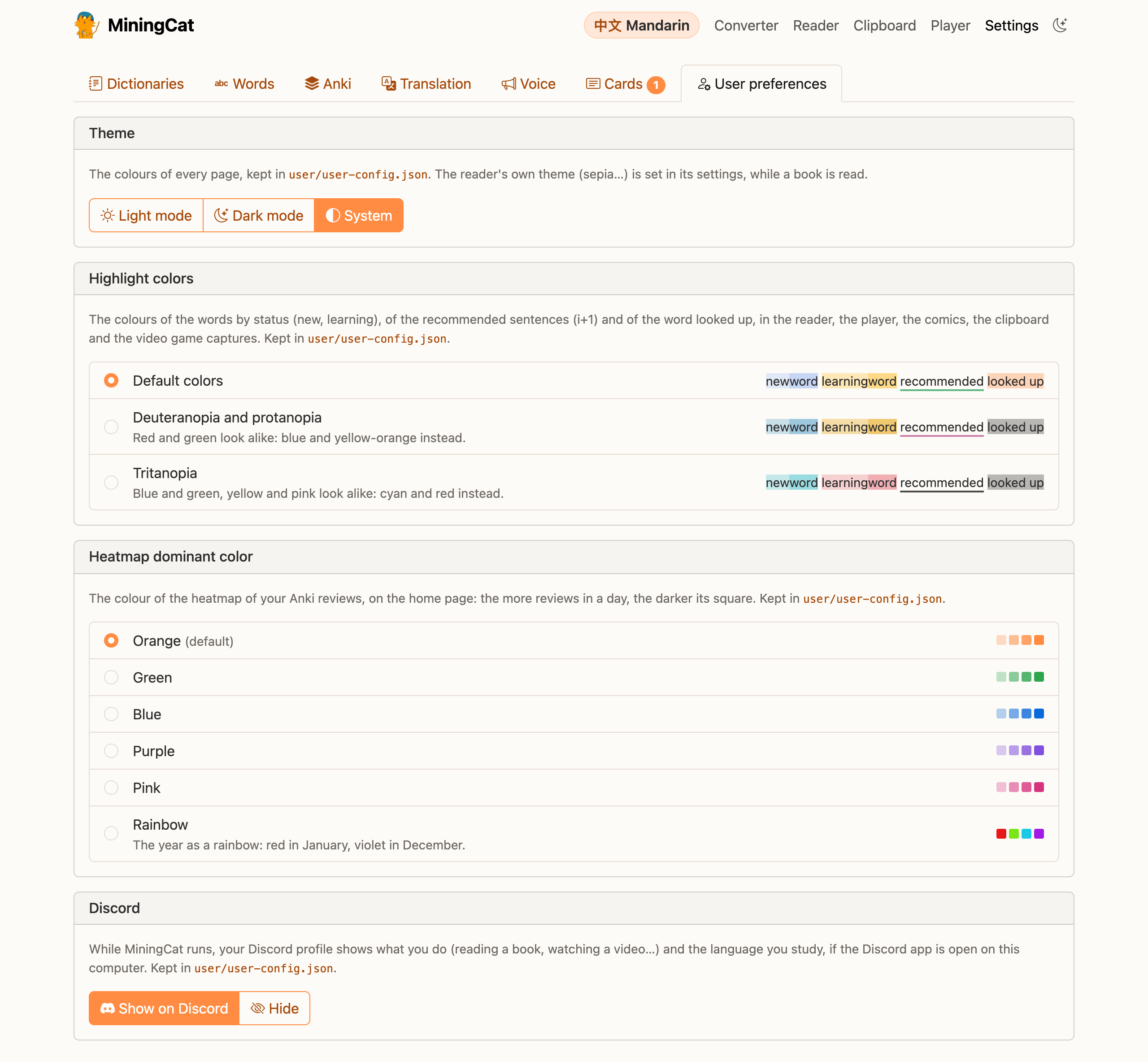
While MiningCat runs, your Discord profile shows what you do in it ("Reading a book", "Watching a video", "Playing" and the source name of a game...) and the language you study, with your Anki streak once the home page got it ("Japanese · 🔥 12-day streak"), if the Discord app is open on the same computer. Turn it off in Settings › User preferences › Discord.
You can drag and drop files on the audio, book and video panels. The files you pick are copied into the project's sources/ folder, like before.
The converter's header has three settings shared by every workflow:
| Setting | What it does |
|---|---|
| Source | Audiobook / Ebook, Video or Video game / Screen share. Picks which screen you're working with. |
| Variant | Only when the language studied has several (Mandarin: Taiwan or China, English: US or UK). It drives transcription, punctuation fixes, TTS voices and subtitle metadata. |
| Convert to | Only for Chinese variants: converts subtitles between simplified and traditional characters (e.g. read a mainland book in traditional). |
Then pick your workflow:
- Audiobooks & ebooks: one video per chapter, from a book and/or its audiobook.
- Videos: subtitles for a YouTube, Instagram or Bilibili video, or a video file on your computer.
- Video games & screen share: OCR the text of a game window, and mine it from a web page.
When you're done, the videos are in output/final/. Open them in MiningCat's video player, or in any player you like, and start mining!
Accepted inputs
| Input | Formats |
|---|---|
| Ebook | .epub (recommended), .txt (one or several files) |
| Audiobook | .m4b (split with its chapter markers), .mp3, .m4a, .aac, .ogg, .wav, .flac, .opus (one file per chapter) |
| Video | A URL from a supported platform, or any local video file ffmpeg can read |
| Video game | Any window on screen (Linux and macOS) |
See Files and folders for where everything ends up.